

Admin access to its members.
Default roles
OpenWork Cloud comes with four default roles:Owner: full org control, including member roles and custom roles.Super Admin(super-admin): can manage organization settings, SSO, SCIM, API keys, member roles, and custom roles, as well as routine administration.Admin: can inviteMemberusers, manage ordinary teams, remove members subject to access safeguards, and manage shared Cloud resources. Cannot assign roles or change organization security settings.Member: can use resources shared with them but cannot manage org administration.
Admin. Ownership transfer and organization deletion remain owner-only; Owner cannot be assigned through an invitation or the ordinary role editor.
Invite members
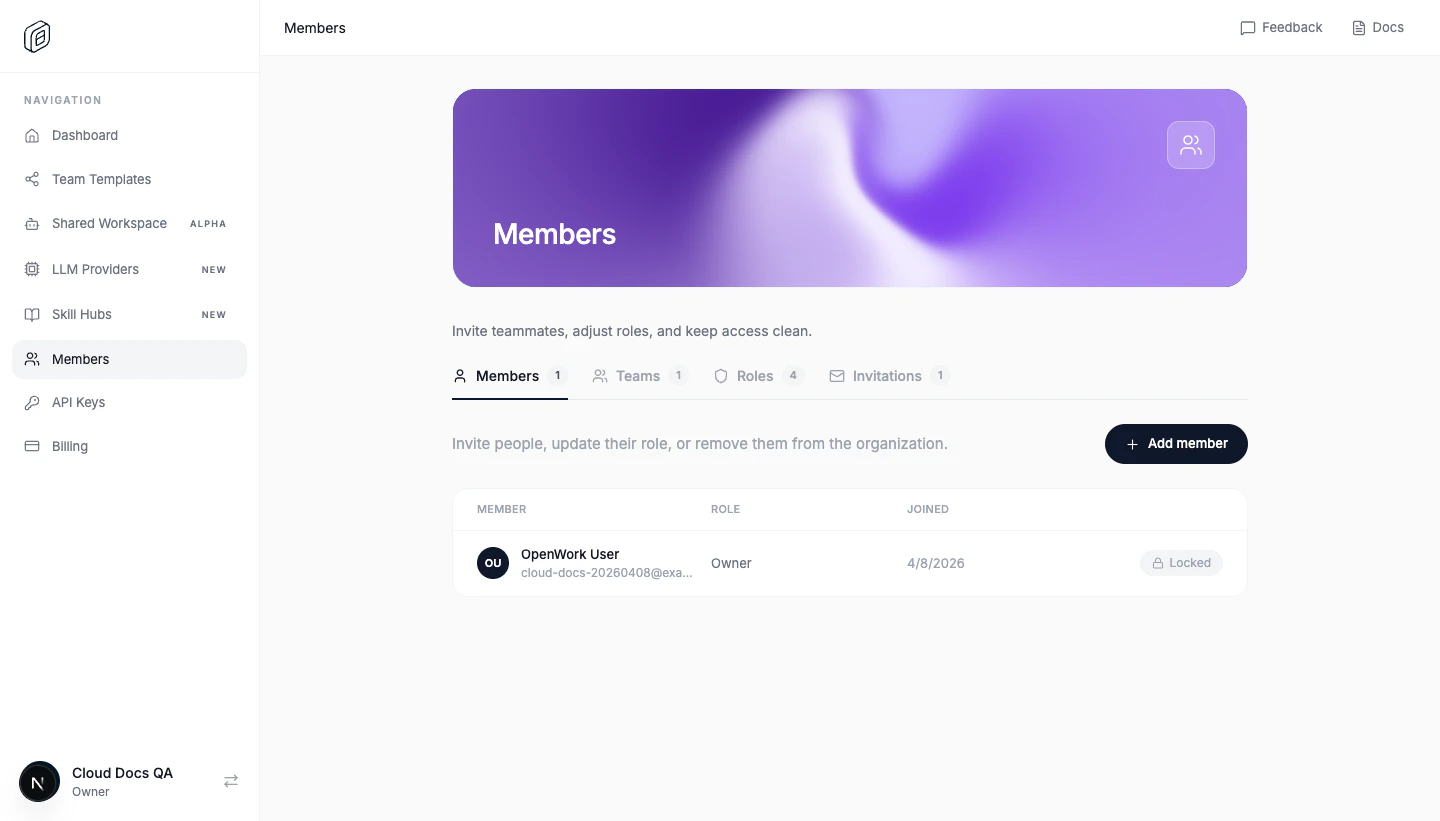
- Open
Members. - On the
MembersorInvitationstab, clickAdd memberorInvite member. - Enter the teammate
Email. - If you are an owner or super-admin, choose the initial
Role. Admins can invite onlyMemberusers. - Click
Send invite.
SSO just-in-time provisioning
When SSO just-in-time provisioning adds someone to an organization on first sign-in, OpenWork assigns the baselineMember role. IdP attributes such as role, groups, or admin are not used to grant OpenWork organization roles.
Elevated access requires an explicit OpenWork role assignment, ownership transfer, or approved Admin team. A SAML group attribute or an identity-provider group named Admins does not grant a role on its own.
Restrict who can join
If you only want teammates from specific companies or domains to join:- Open
Org settings. - Turn on
Restrict allowed email domains. - Add each approved domain to the
Domain allowlist. - Click
Save settings.
Create teams
- Open
Members -> Teams. - Click
Create Team. - Set
Team name. - Choose
Team members. - Click
Create team.
Manage teams with SCIM Groups
Organizations using SCIM can openSCIM and enable Create teams from SCIM groups. OpenWork then creates a team for each provisioned Group and keeps its membership synchronized from the identity provider. These teams are labeled Managed by SCIM and must be changed in the identity provider; manually created teams and memberships remain independent.
To connect an identity provider, follow
Okta SCIM provisioning or
Microsoft Entra SCIM provisioning.
When SCIM deprovisions a user, OpenWork retains a disconnected member record for organization history. The global user is deleted only when they have no other active organization memberships. Reactivate the user through SCIM before they can regain SAML access.
Team Admin access
An Admin team grants the built-in organizationAdmin role, not just administration of that team. It can be a manually managed OpenWork team or a team synchronized from a SCIM Group. Creating or syncing a team does not enable this grant automatically.
Approve an Admin team
- Sign in as an organization owner or super-admin.
- Open Members -> Teams and review the team’s members.
- Select
Grant organisation Admin to all members of {team name}beneath the team in the list. The same checkbox is available directly below the heading on the team’s detail page, above Overview and Access. - The checkbox saves immediately. In Members, check
Admin via {team name}to see the source of inherited access.
Direct and inherited roles
- A direct role is assigned to the person in OpenWork. Team membership does not rewrite it.
- Inherited Admin is added while the person is an active organization member of an approved Admin team. Their direct role and other grants still apply.
- Teams never grant
Owner,Super Admin, or a custom role. Inherited Admin does not unlock owner/super-admin-only settings or role management. - Removing someone from one Admin team, or clearing that team’s checkbox, removes only that source of Admin access. A direct
Adminrole or another approved Admin team still grants Admin. Changing a direct role toMemberdoes not remove an existing team grant.
Who manages membership
For a manually managed Admin team, only owners and super-admins can add or remove members or delete the team. This applies whether membership is edited from the team or the member list. Admins also cannot remove an organization member with Admin team access or refresh or cancel an invitation carrying that access. For a team labeled Managed by SCIM, change its name and membership in the identity provider, not in OpenWork. Owners and super-admins still control the Admin checkbox in OpenWork. Approving it means trusting the identity provider’s group-membership administrators to determine who receives organization Admin through that group. SCIM changes apply only after the identity provider sends them and OpenWork processes them successfully. A removal still waiting in an Entra provisioning cycle or Okta group push has not yet revoked access in OpenWork. Check provider provisioning logs, OpenWork SCIM health, and Admin via rather than assuming an IdP edit has taken effect. SCIM user deprovisioning removes active organization access, not just one team’s grant.SCIM mapping changes and reapproval
When Create teams from SCIM groups is switched off in Settings -> SCIM, OpenWork clears the affected teams’ Admin grants but retains the teams and their current memberships as manually managed teams. Retaining a team does not retain its approval to grant Admin. An owner or super-admin must review the retained membership and select the Admin checkbox again if manual Admin access is intended. While team sync is off, subsequent SCIM group renames, membership updates, or group deletion do not change the retained manual team’s name, membership, or reapproved Admin grant. This does not disable SCIM user deprovisioning. Saving the already-disabled mapping mode (metadata_only) again does not clear a manual reapproval.
Re-enabling team sync clears the Admin grant again and replaces retained manual membership with the SCIM group’s membership. Review the synchronized membership before approving the team again.
While team sync is enabled, deleting the SCIM Group or connector also clears the affected Admin grant. Any retained team needs explicit owner or super-admin reapproval before it can grant Admin as a manual team. Deleting the Group removes its synchronized team memberships; do not use retained team records as proof of continuing access.
Use custom roles when needed
- Open
Members -> Roles. - Click
Create role. - Enter
Role name. - Choose the permissions that role should have.
- Click
Create role.
security_configuration.manage alone is not sufficient.
Practical access pattern
A simple setup that works well for most orgs:- keep ownership with a designated, protected
Owneraccount - reserve
Super Adminfor trusted settings and access administrators - give day-to-day operators direct
Adminor membership in an approved Admin team - keep most people as
Member - use
Teamsto decide who can see specific Collections or providers
Notes
- You cannot change the org owner’s role through the ordinary role editor or remove the owner; use ownership transfer when handing over control.
- Owners, super-admins, and admins can manage ordinary teams and member invitations. Admin team access has the stricter rules described above.
- Only owners and super-admins can change
Org settings, including allowed email domains and desktop restrictions. - You cannot delete a custom role while members or pending invitations still use it.