

OpenWork Cloud is optional. The local desktop app stays free, requires no Cloud sign-in, and supports your own providers, skills, plugins, and custom MCP servers. Use Cloud when an organization needs to assign and manage those resources for a team.
- Open app.openworklabs.com in your browser.
- Click
Create organization. - Enter your org name.
- Finish checkout if OpenWork Cloud asks for billing.
- Continue to the desktop sign-in steps below.
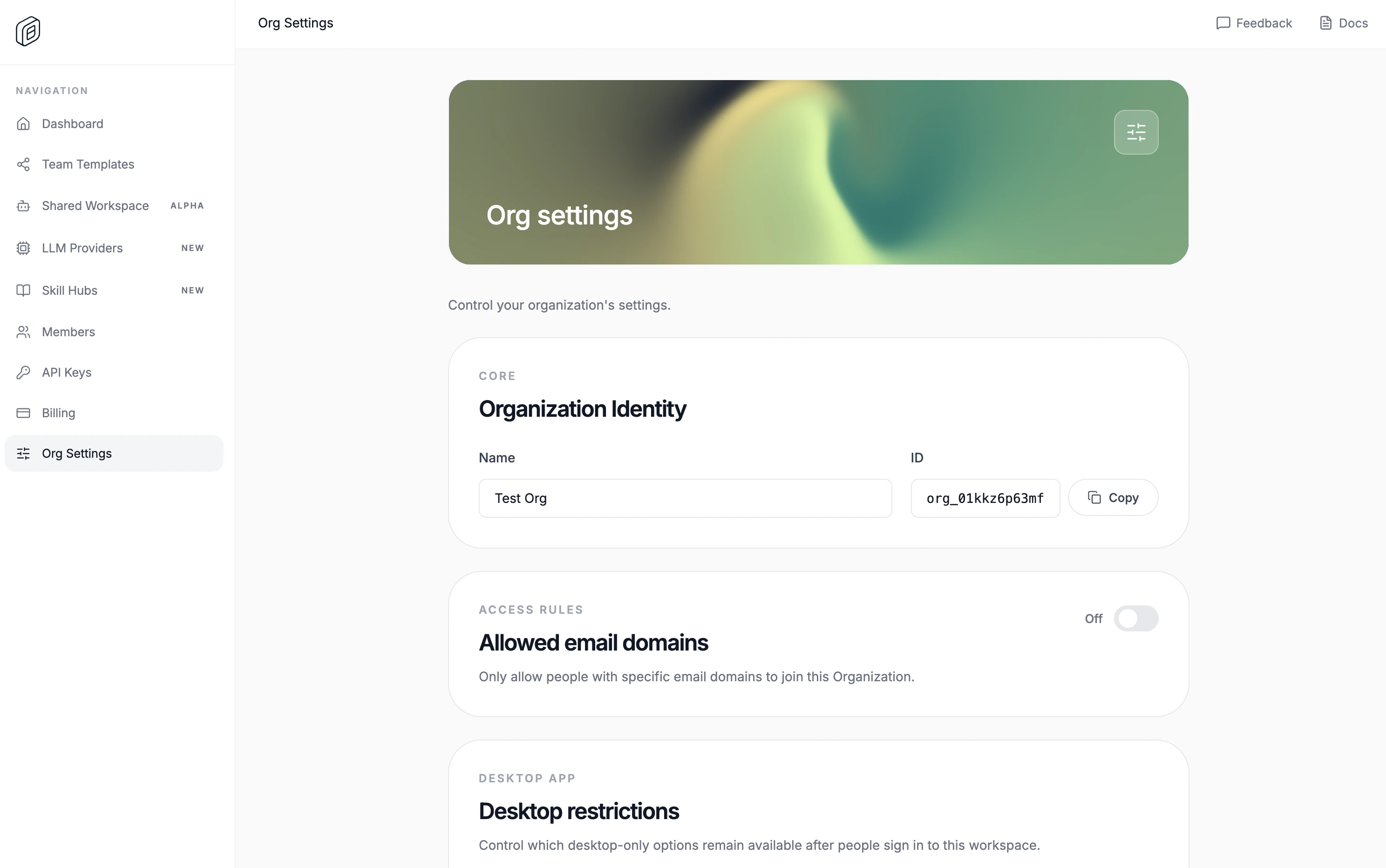
Configure org settings
Only the organization owner can change these settings.
- Open the
dashboard/org_settingspage in the cloud app. - Set the name for your organization.
- Optional: enable
Restrict allowed email domainsand add the approved domains. - Optional: change any
Desktop restrictionsthat should apply after people sign in from the desktop app.
Sign in from the desktop app
- Open
Settings > Account. - Click
Sign in. - Finish sign-in in your browser.
- If the browser does not return to OpenWork automatically, click
Paste sign-in code, paste theopenwork://den-auth?...link or one-time code from OpenWork Cloud, then clickFinish sign-in.
Cloud URL used by the desktop app
The desktop app uses a single Cloud URL: the Den webbaseUrl. The hosted
default is https://app.openworklabs.com.
All Cloud API and MCP traffic is derived from that one URL through the web app
proxy:
- Cloud API requests go to
<baseUrl>/api/den/v1/.... - OpenWork Cloud MCP requests go to
<baseUrl>/api/den/mcp/....
desktop-bootstrap.json; if that file is missing, it falls
back to https://app.openworklabs.com. When you change the Cloud URL in
Settings > Account, OpenWork writes the new baseUrl back to the bootstrap
file so the next launch uses the same source of truth.
Choose your organization
After sign-in, pick your organization inSettings > Account. Organization-assigned plugins and skills appear in Settings > Library.
What to do next
- Send members to Connect your services to sign in to team-approved accounts from the desktop app.
- Use Connectors to publish a managed service and grant member or team access.
- Use Publish and copy a skill for the primary skill-sharing flow, or Collections to group and assign several plugins.
- Use OpenWork Web to give members a hosted OpenWork workspace in the browser, with nothing to install.
- Use LLM providers or custom LLM providers to manage shared model access.
- Use Members and RBAC to invite people, create teams, and control access.