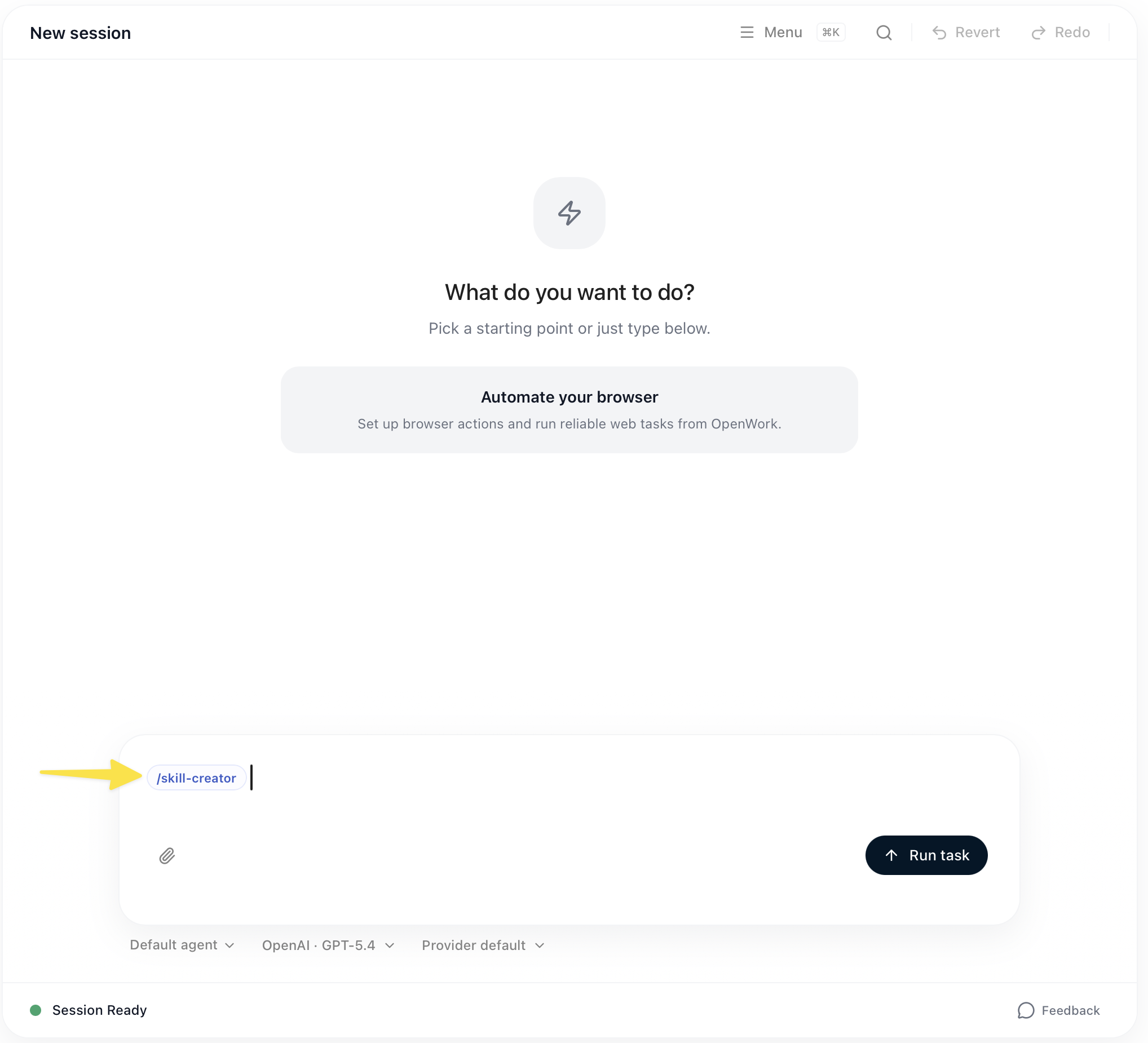
- Create a skill with
Create skill in chatand paste the external skill into that flow. - Install a shared skill from your OpenWork Cloud organization in
Skills -> CloudorSettings -> Cloud.
.opencode/skills/<skill-name>/SKILL.md inside your workspace.
We recommend the built-in skill creator for one-off imports and OpenWork Cloud for team-managed skills.
For teams, OpenWork Cloud can publish shared skills either as standalone org skills or inside a marketplace plugin. Each desktop workspace can install them from the Cloud tab on the Skills page or from Settings -> Extensions -> Marketplace.
Installing a skill from OpenWork Cloud
If someone on your team saved a skill to your active OpenWork Cloud organization, open eitherSkills -> Cloud or Settings -> Cloud in the desktop app.
From there you can:
- click
Installto add the skill to the current workspace - click
Syncwhen the cloud version changes - click
Uninstallif you no longer want the workspace-managed copy
Creating a skill with /skill-creator in chat
Type /skill-creator in chat, then either paste the external skill you want to import or describe what you want the skill to do. OpenWork will generate a workspace-local skill from that input.