> ## Documentation Index
> Fetch the complete documentation index at: https://openworklabs.com/docs/llms.txt
> Use this file to discover all available pages before exploring further.
# Share skills with your team
> Learn how to save skills to OpenWork Cloud for your teammates
OpenWork sharing focuses on saving skills to your OpenWork Cloud organization so teammates can install them from the Cloud tab.
## How to save a skill to your OpenWork Cloud organization
Open `Workspace -> Skills` in the desktop app.
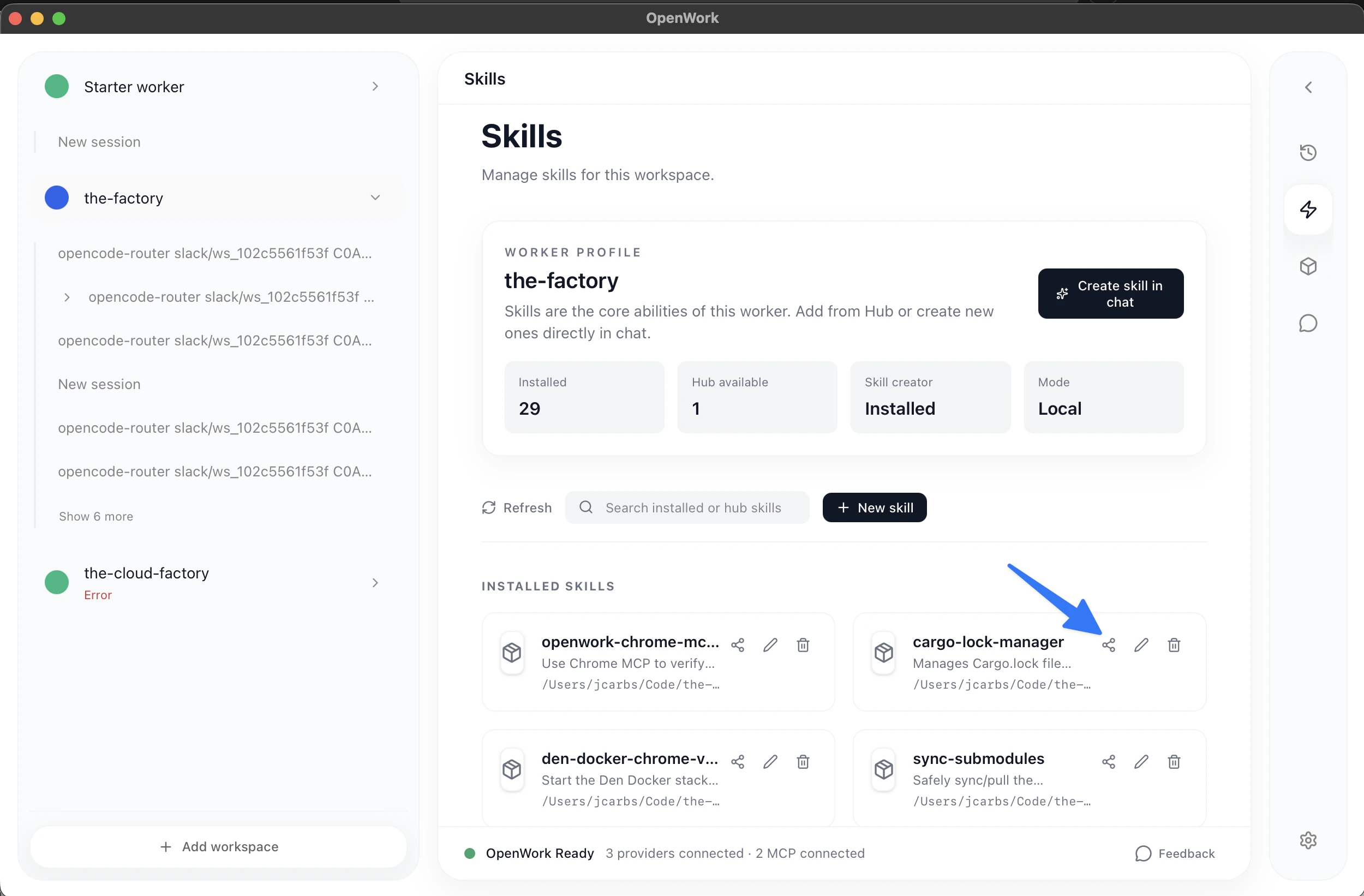 1. Pick the installed skill you want to share.
2. Click `Share with team`.
3. Sign in to OpenWork Cloud if needed.
4. Pick the sharing permission:
* `Organization Only - Not in hub` keeps the skill available to the active org without adding it to a hub.
* `Private for me only` uploads it to the org but keeps it limited to your account.
* If a hub is available, you can also attach the skill to that hub during the same flow.
5. Click `Upload and save`.
After that, teammates can install the skill from `Skills -> Cloud`. If the skill was attached to a hub, it also appears in `Settings -> Cloud -> Skills` with the hub label so people can sync or remove it later.
1. Pick the installed skill you want to share.
2. Click `Share with team`.
3. Sign in to OpenWork Cloud if needed.
4. Pick the sharing permission:
* `Organization Only - Not in hub` keeps the skill available to the active org without adding it to a hub.
* `Private for me only` uploads it to the org but keeps it limited to your account.
* If a hub is available, you can also attach the skill to that hub during the same flow.
5. Click `Upload and save`.
After that, teammates can install the skill from `Skills -> Cloud`. If the skill was attached to a hub, it also appears in `Settings -> Cloud -> Skills` with the hub label so people can sync or remove it later.