> ## Documentation Index
> Fetch the complete documentation index at: https://openworklabs.com/docs/llms.txt
> Use this file to discover all available pages before exploring further.

# Sign in with ChatGPT

> How to use ChatGPT OAuth with Openwork

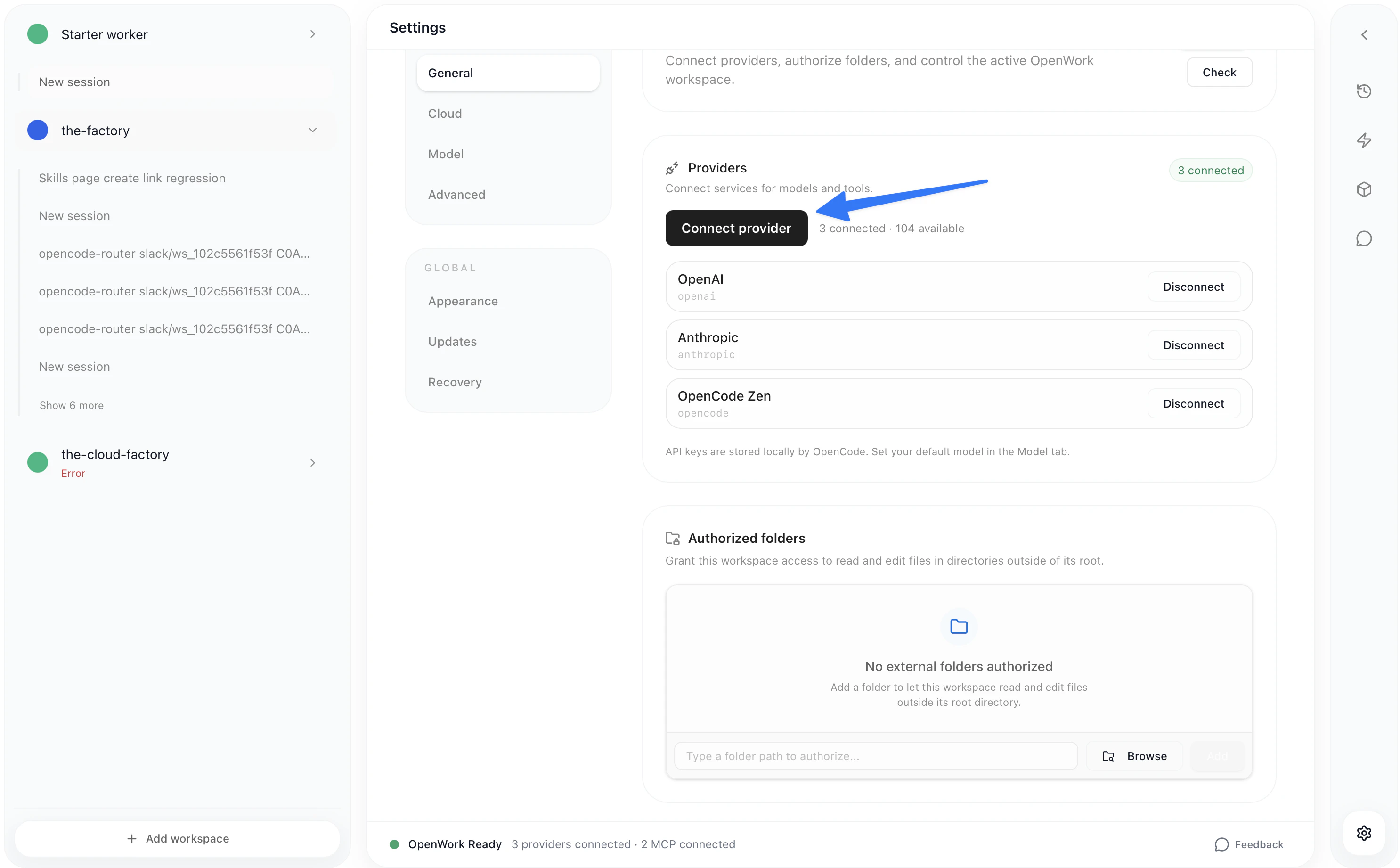
Connecting ChatGPT with openwork takes four clicks.

* Go to `Settings` > `Connect Provider` > `OpenAI` > `ChatGPT Pro/Plus`
<Frame>
  <img src="https://mintcdn.com/differentai/kRSCNBy5OeKx9Ne1/images/chatgpt-connect-provider-settings.png?fit=max&auto=format&n=kRSCNBy5OeKx9Ne1&q=85&s=34ff33e314aeaf2bc92ddd72c585303f" alt="Settings page showing Connect Provider button" width="2972" height="1842" data-path="images/chatgpt-connect-provider-settings.png" />
</Frame>

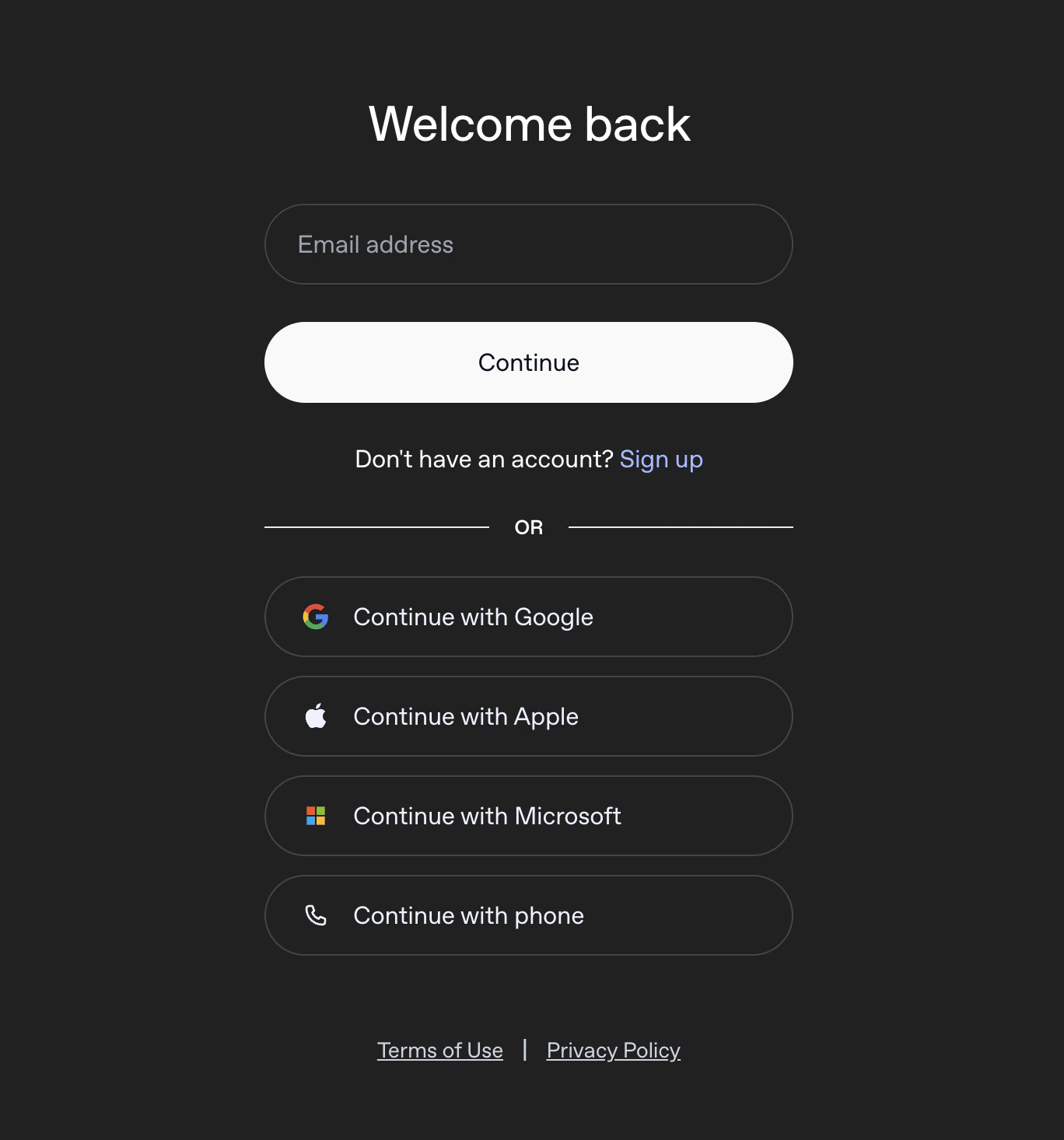
Then, login into `openai Auth`  with a valid subscription email
<Frame>
  <img src="https://mintcdn.com/differentai/kRSCNBy5OeKx9Ne1/images/chatgpt-openai-auth-login.png?fit=max&auto=format&n=kRSCNBy5OeKx9Ne1&q=85&s=8259322cbf1e71b897a72c4d48b3f16f" alt="OpenAI authentication login page" width="1368" height="1466" data-path="images/chatgpt-openai-auth-login.png" />
</Frame>

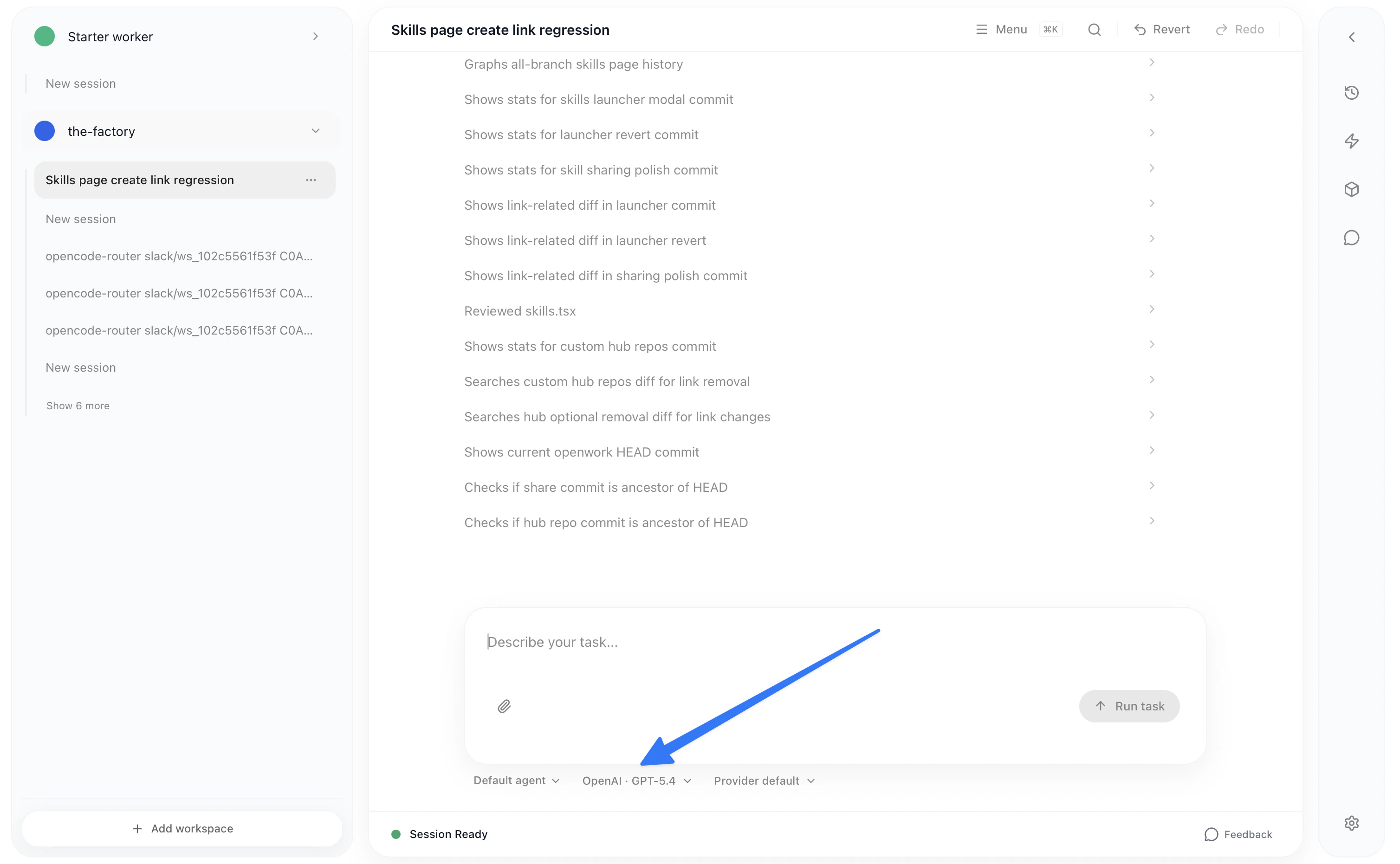
Once you have finished the auth, you can change the model below in the chat.
<Frame>
  <img src="https://mintcdn.com/differentai/kRSCNBy5OeKx9Ne1/images/chatgpt-model-selector.png?fit=max&auto=format&n=kRSCNBy5OeKx9Ne1&q=85&s=e23895b21f0625ca0b2797c3489d8b34" alt="Model selector dropdown in chat" width="3016" height="1862" data-path="images/chatgpt-model-selector.png" />
</Frame>

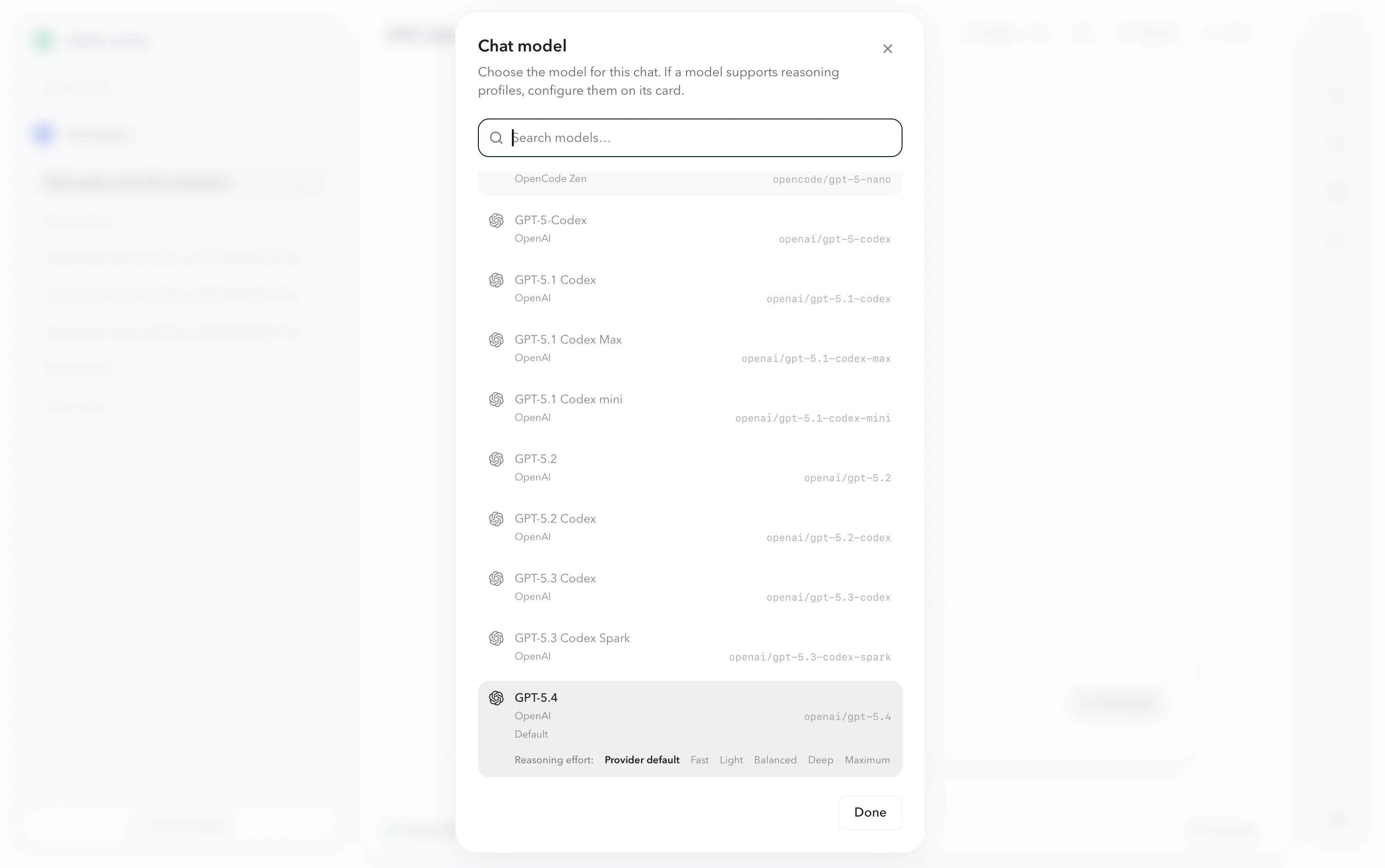
You will be able to choose among any model offered by all the providers you're connected to:
<Frame>
  <img src="https://mintcdn.com/differentai/kRSCNBy5OeKx9Ne1/images/chatgpt-model-list.png?fit=max&auto=format&n=kRSCNBy5OeKx9Ne1&q=85&s=ec836f894a472410ac8a00f1c15a5b2e" alt="Model list showing available models from all providers" width="3014" height="1890" data-path="images/chatgpt-model-list.png" />
</Frame>
