> ## Documentation Index
> Fetch the complete documentation index at: https://openworklabs.com/docs/llms.txt
> Use this file to discover all available pages before exploring further.
# Adding a managed LLM provider
> Create an org-managed provider in OpenWork Cloud and import it into the desktop app
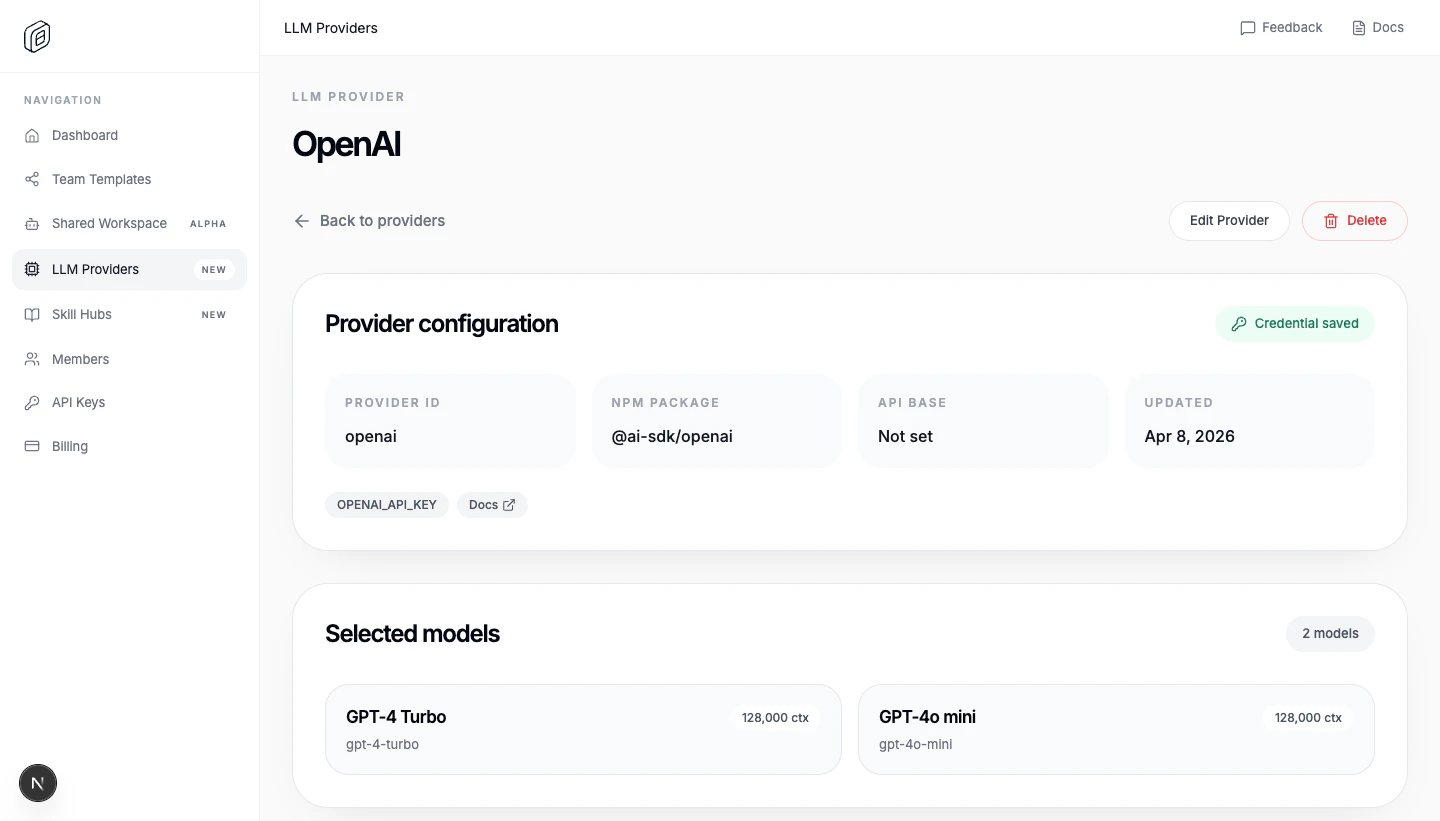
Use `LLM Providers` when you want the org to manage the credential, model list, and access rules once, then let each desktop workspace import the providers from cloud.
## Create the provider in OpenWork Cloud
1. Open `LLM Providers`.
2. Click `Add Provider`.
3. Stay on `Catalog provider`.
4. Choose the provider in `Provider`.
5. Select the models the org should expose.
6. Paste the shared `API key / credential`.
7. Choose `People access` and/or `Team access`.
8. Click `Create Provider`.
 ## Import it into the desktop app
1. Open `Settings -> Cloud`.
2. Choose the correct `Active org`.
3. Under `Cloud providers`, click `Import`.
4. Reload the workspace when OpenWork asks.
OpenWork writes the imported provider into the workspace `opencode.jsonc` and stores the org credential for that workspace.
## Update or remove it later
* Use `Sync` after changing models or access in OpenWork Cloud.
* Use `Remove` to stop managing the imported provider from this workspace.
* If the provider was deleted in Cloud, the desktop app shows `Removed from cloud` and lets you `Uninstall` the local config.
* The provider must have a stored org credential before the desktop app can import it.
If you only need a one-off local setup, use the desktop guide at [Adding a custom LLM provider/model](/start-here/connect-your-stack/add-a-custom-llm).
## Import it into the desktop app
1. Open `Settings -> Cloud`.
2. Choose the correct `Active org`.
3. Under `Cloud providers`, click `Import`.
4. Reload the workspace when OpenWork asks.
OpenWork writes the imported provider into the workspace `opencode.jsonc` and stores the org credential for that workspace.
## Update or remove it later
* Use `Sync` after changing models or access in OpenWork Cloud.
* Use `Remove` to stop managing the imported provider from this workspace.
* If the provider was deleted in Cloud, the desktop app shows `Removed from cloud` and lets you `Uninstall` the local config.
* The provider must have a stored org credential before the desktop app can import it.
If you only need a one-off local setup, use the desktop guide at [Adding a custom LLM provider/model](/start-here/connect-your-stack/add-a-custom-llm).