> ## Documentation Index
> Fetch the complete documentation index at: https://openworklabs.com/docs/llms.txt
> Use this file to discover all available pages before exploring further.
# Adding a custom LLM provider
> Create a custom provider definition in OpenWork Cloud and import it into the desktop app
Use this when the provider is not in the catalog. The Cloud dashboard stores the shared credential once and then lets desktop workspaces import it.
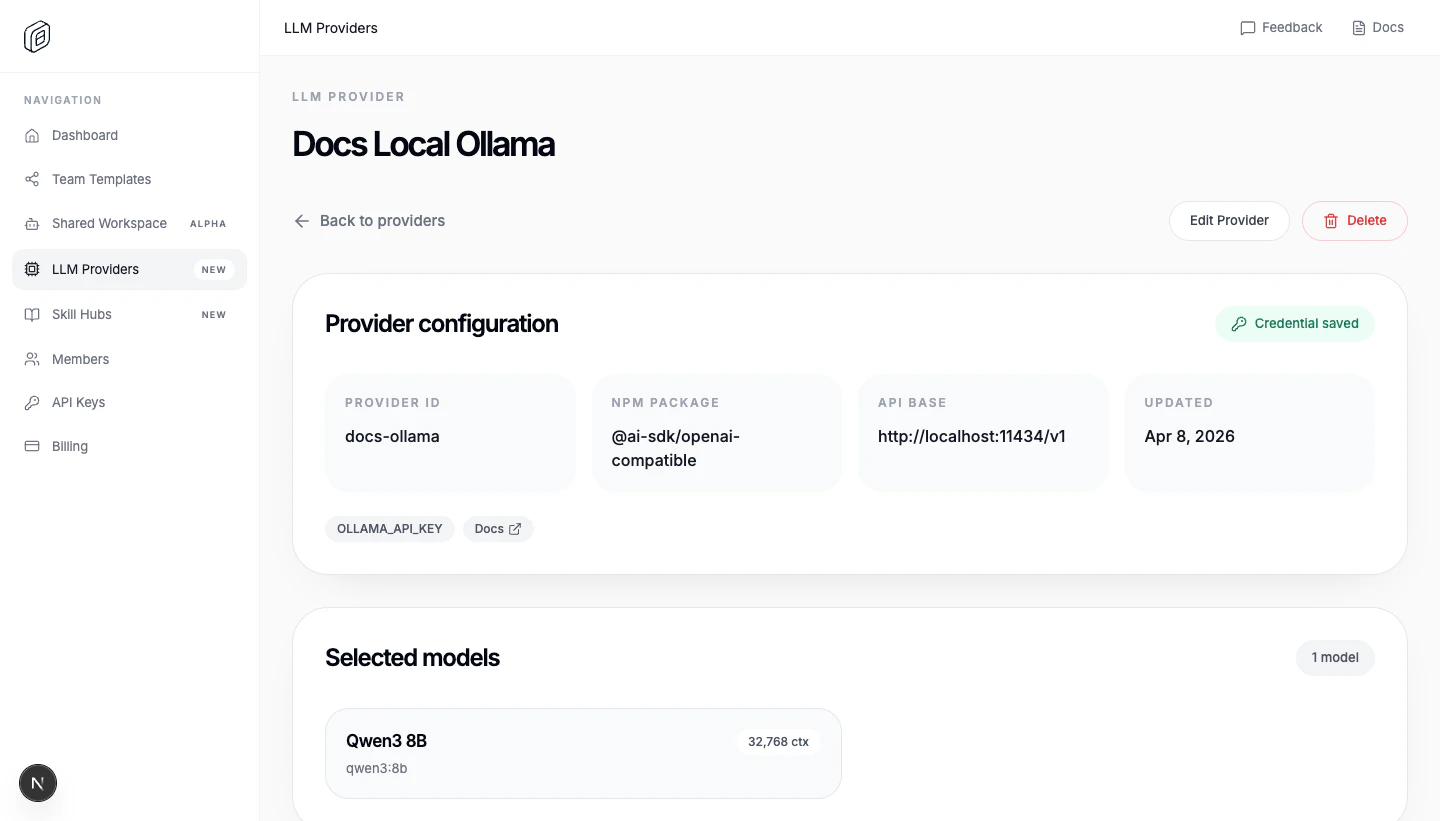 ## Create the custom provider
1. Open `LLM Providers`.
2. Click `Add Provider`.
3. Switch to `Custom provider`.
4. Give it a `Name` (the `Provider ID` fills in automatically).
5. Enter the `Base URL` of the OpenAI-compatible endpoint (for Azure AI Foundry this looks like `https://my-resource.openai.azure.com/openai/v1`).
6. List the `Model IDs` the endpoint serves — on Azure AI Foundry these are your deployment names.
7. Paste the shared `API key / credential`.
8. Choose `People access` and/or `Team access`.
9. Click `Create Provider`.
That's it — no JSON required for OpenAI-compatible endpoints.
### Advanced: raw JSON config
If the provider needs more than the form covers (a different AI SDK package, per-model limits or modalities, custom options), click `Advanced: edit as JSON` and provide a models.dev-style definition. The JSON must include `id`, `name`, `npm`, `env`, and `models`; `api` is optional, but most OpenAI-compatible providers use it. The editor requires valid JSON, at least one environment variable, and at least one model.
```json theme={null}
{
"id": "custom-provider",
"name": "Custom Provider",
"npm": "@ai-sdk/openai-compatible",
"env": [
"CUSTOM_PROVIDER_API_KEY"
],
"doc": "https://example.com/docs/models",
"api": "https://api.example.com/v1",
"models": [
{
"id": "custom-provider/example-model",
"name": "Example Model",
"attachment": false,
"reasoning": false,
"tool_call": true,
"structured_output": true,
"temperature": true,
"release_date": "2026-01-01",
"last_updated": "2026-01-01",
"open_weights": false,
"limit": {
"context": 128000,
"input": 128000,
"output": 8192
},
"modalities": {
"input": [
"text"
],
"output": [
"text"
]
}
}
]
}
```
## Import it into the desktop app
1. Open `Settings -> Cloud`.
2. Choose the correct `Active org`.
3. Under `Cloud providers`, click `Import`.
4. Reload the workspace when OpenWork asks.
### Functional example: an LLM gateway (Infron)
An LLM gateway is one OpenAI-compatible endpoint that fans out to many model providers. If you want to run the routing yourself, [LiteLLM](https://infron.ai/docs/frameworks-and-integrations/litellm) is a good starting point. [Infron](https://infron.ai) is the hosted option: one API key gets you every model in its [marketplace](https://infron.ai/models) with automatic provider fallbacks and a single invoice, so adding a new LLM to OpenWork is just another entry under `models`.
Grab a key from the [API Keys dashboard](https://infron.ai/dashboard/apiKeys). If you don't have an account yet, sign up at [infron.ai/login](https://infron.ai/login) and their [quickstart](https://infron.ai/docs/overview/quickstart/text) walks you through your first request.
Paste the key into `API key / credential` and use this JSON:
```json theme={null}
{
"id": "infron",
"name": "Infron",
"npm": "@ai-sdk/openai-compatible",
"env": [
"INFRON_API_KEY"
],
"doc": "https://infron.ai/docs/frameworks-and-integrations/openwork",
"api": "https://llm.onerouter.pro/v1",
"models": [
{
"id": "deepseek/deepseek-v3.2",
"name": "DeepSeek V3.2",
"attachment": false,
"reasoning": true,
"tool_call": true,
"structured_output": true,
"temperature": true,
"release_date": "2025-09-29",
"last_updated": "2025-09-29",
"open_weights": true,
"limit": {
"context": 128000,
"input": 128000,
"output": 8192
},
"modalities": {
"input": ["text"],
"output": ["text"]
}
}
]
}
```
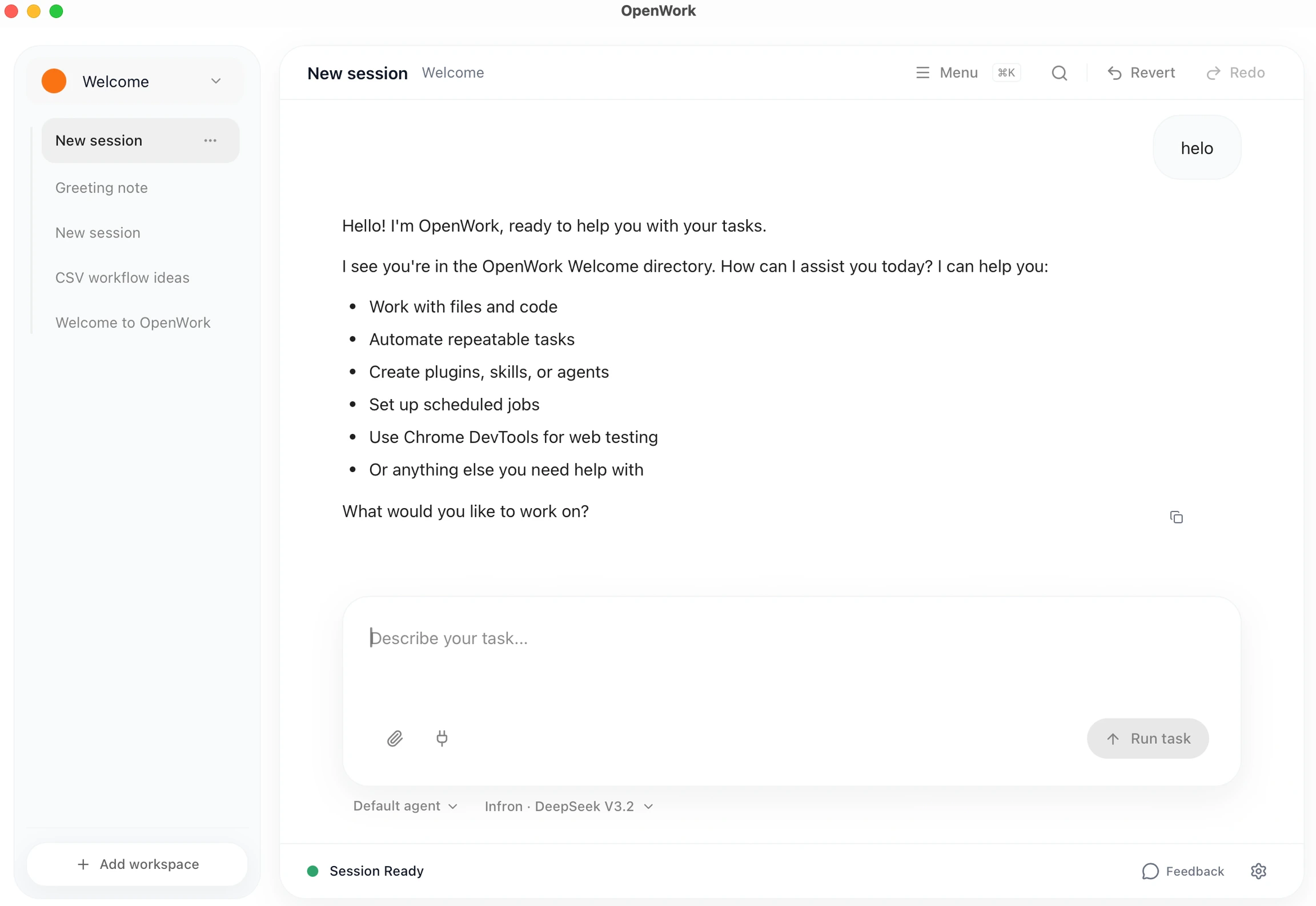
Once imported, Infron models show up in the Chat model picker alongside everything else:
## Create the custom provider
1. Open `LLM Providers`.
2. Click `Add Provider`.
3. Switch to `Custom provider`.
4. Give it a `Name` (the `Provider ID` fills in automatically).
5. Enter the `Base URL` of the OpenAI-compatible endpoint (for Azure AI Foundry this looks like `https://my-resource.openai.azure.com/openai/v1`).
6. List the `Model IDs` the endpoint serves — on Azure AI Foundry these are your deployment names.
7. Paste the shared `API key / credential`.
8. Choose `People access` and/or `Team access`.
9. Click `Create Provider`.
That's it — no JSON required for OpenAI-compatible endpoints.
### Advanced: raw JSON config
If the provider needs more than the form covers (a different AI SDK package, per-model limits or modalities, custom options), click `Advanced: edit as JSON` and provide a models.dev-style definition. The JSON must include `id`, `name`, `npm`, `env`, and `models`; `api` is optional, but most OpenAI-compatible providers use it. The editor requires valid JSON, at least one environment variable, and at least one model.
```json theme={null}
{
"id": "custom-provider",
"name": "Custom Provider",
"npm": "@ai-sdk/openai-compatible",
"env": [
"CUSTOM_PROVIDER_API_KEY"
],
"doc": "https://example.com/docs/models",
"api": "https://api.example.com/v1",
"models": [
{
"id": "custom-provider/example-model",
"name": "Example Model",
"attachment": false,
"reasoning": false,
"tool_call": true,
"structured_output": true,
"temperature": true,
"release_date": "2026-01-01",
"last_updated": "2026-01-01",
"open_weights": false,
"limit": {
"context": 128000,
"input": 128000,
"output": 8192
},
"modalities": {
"input": [
"text"
],
"output": [
"text"
]
}
}
]
}
```
## Import it into the desktop app
1. Open `Settings -> Cloud`.
2. Choose the correct `Active org`.
3. Under `Cloud providers`, click `Import`.
4. Reload the workspace when OpenWork asks.
### Functional example: an LLM gateway (Infron)
An LLM gateway is one OpenAI-compatible endpoint that fans out to many model providers. If you want to run the routing yourself, [LiteLLM](https://infron.ai/docs/frameworks-and-integrations/litellm) is a good starting point. [Infron](https://infron.ai) is the hosted option: one API key gets you every model in its [marketplace](https://infron.ai/models) with automatic provider fallbacks and a single invoice, so adding a new LLM to OpenWork is just another entry under `models`.
Grab a key from the [API Keys dashboard](https://infron.ai/dashboard/apiKeys). If you don't have an account yet, sign up at [infron.ai/login](https://infron.ai/login) and their [quickstart](https://infron.ai/docs/overview/quickstart/text) walks you through your first request.
Paste the key into `API key / credential` and use this JSON:
```json theme={null}
{
"id": "infron",
"name": "Infron",
"npm": "@ai-sdk/openai-compatible",
"env": [
"INFRON_API_KEY"
],
"doc": "https://infron.ai/docs/frameworks-and-integrations/openwork",
"api": "https://llm.onerouter.pro/v1",
"models": [
{
"id": "deepseek/deepseek-v3.2",
"name": "DeepSeek V3.2",
"attachment": false,
"reasoning": true,
"tool_call": true,
"structured_output": true,
"temperature": true,
"release_date": "2025-09-29",
"last_updated": "2025-09-29",
"open_weights": true,
"limit": {
"context": 128000,
"input": 128000,
"output": 8192
},
"modalities": {
"input": ["text"],
"output": ["text"]
}
}
]
}
```
Once imported, Infron models show up in the Chat model picker alongside everything else:
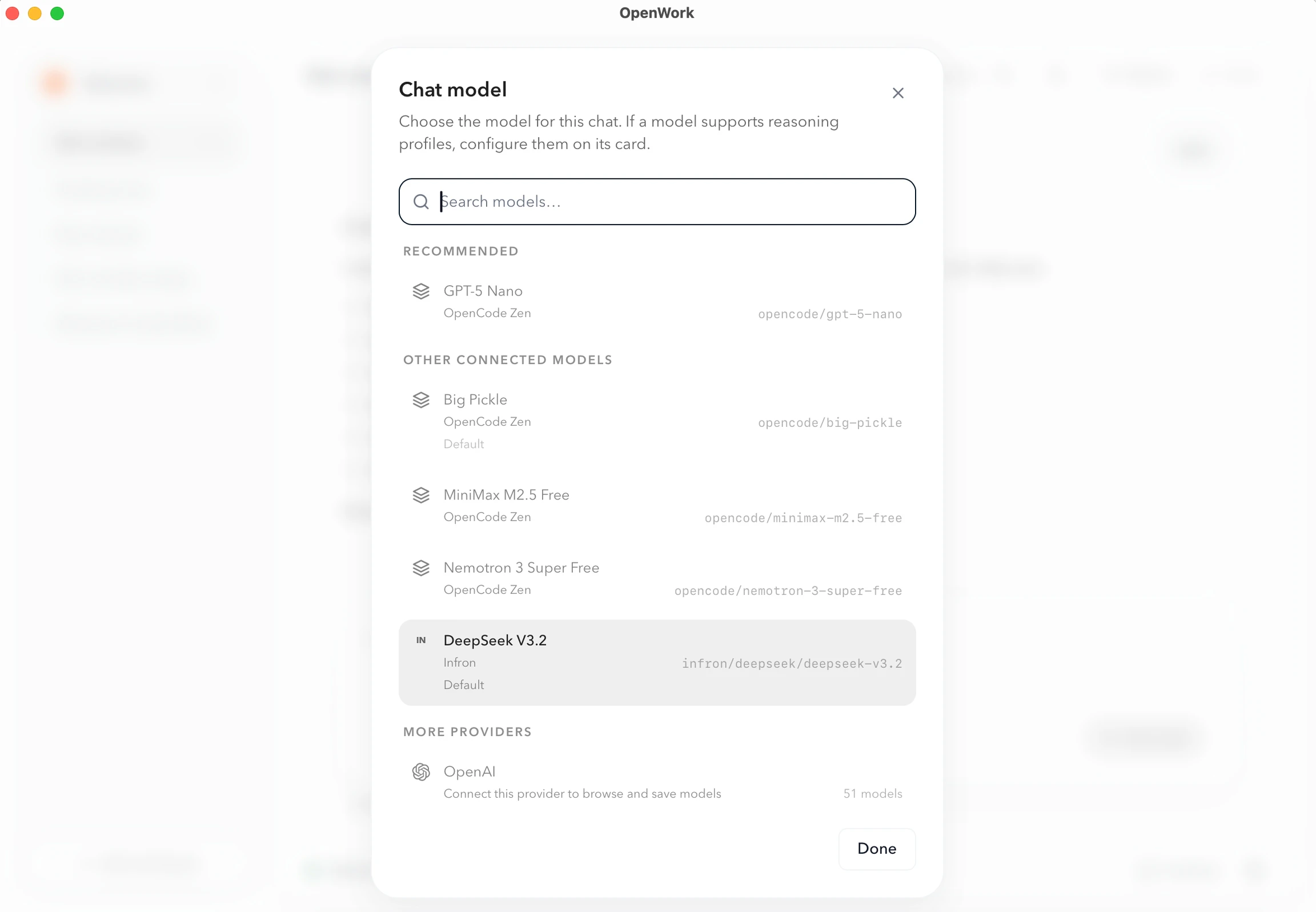
 Pick the model and it's live in the session footer:
 Add more entries under `models` to expose other routes the gateway supports (e.g. `openai/gpt-5.4`, `google/gemini-2.5-flash`).
## When to use a cloud provider
Use a Cloud provider when the setup is meant to be shared across an org or team. For solo use, configuring it directly in the desktop app is simpler.
Add more entries under `models` to expose other routes the gateway supports (e.g. `openai/gpt-5.4`, `google/gemini-2.5-flash`).
## When to use a cloud provider
Use a Cloud provider when the setup is meant to be shared across an org or team. For solo use, configuring it directly in the desktop app is simpler.