> ## Documentation Index
> Fetch the complete documentation index at: https://openworklabs.com/docs/llms.txt
> Use this file to discover all available pages before exploring further.
# Managing members and RBAC
> Invite teammates, create teams, and control Cloud access with owners, admins, members, and custom roles
OpenWork Cloud separates org membership from team assignment. Teams are used for marketplace and provider access; roles control what a person can manage across the org.
## Default roles
OpenWork Cloud comes with three default roles:
* `Owner`: full org control, including member roles and custom roles.
* `Admin`: can invite people, manage teams, and manage most shared Cloud resources.
* `Member`: can use resources shared with them but cannot manage org administration.
Only `Owner` can change member roles, remove members, or create, edit, and delete custom roles.
## Invite members
1. Open `Members`.
2. On the `Members` or `Invitations` tab, click `Add member` or `Invite member`.
3. Enter the teammate `Email`.
4. Choose the initial `Role`.
5. Click `Send invite`.
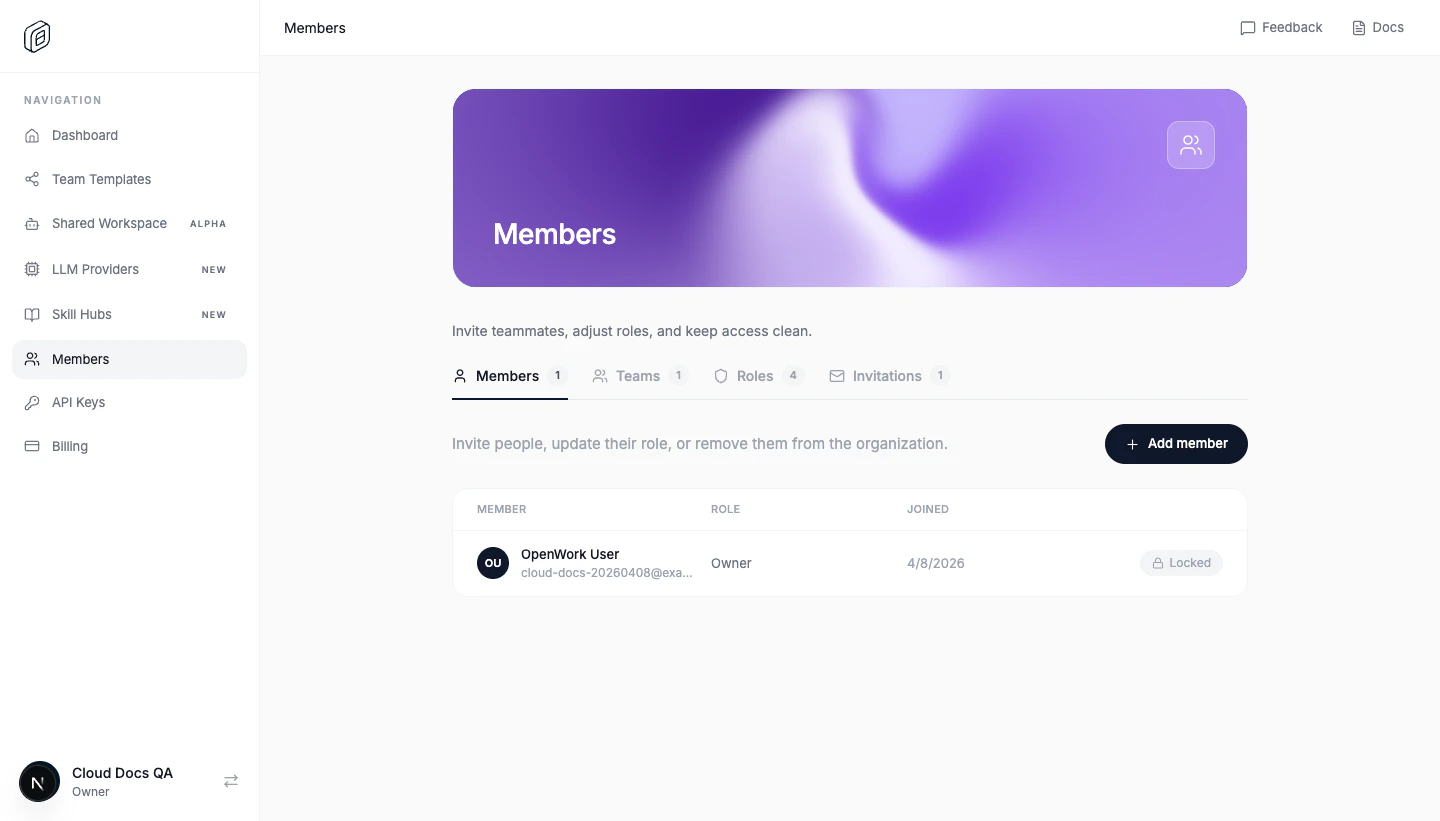 Invites are tied to the invited email address.
## SSO just-in-time provisioning
When SSO just-in-time provisioning adds someone to an organization on first sign-in, OpenWork assigns the baseline `Member` role. IdP attributes such as `role`, `groups`, or `admin` are not used to grant OpenWork organization roles.
Treat `Admin`, `Owner`, and custom-role elevation as explicit access changes made inside OpenWork. Review those changes in the member list and audit trail instead of relying on unvalidated IdP attributes for authorization.
## Restrict who can join
If you only want teammates from specific companies or domains to join:
1. Open `Org settings`.
2. Turn on `Restrict allowed email domains`.
3. Add each approved domain to the `Domain allowlist`.
4. Click `Save settings`.
When this is enabled, OpenWork Cloud only lets people join with email addresses from the approved domains. Existing invites still target a specific email address, so both checks apply: the invitee must use the invited email address and that address must match the allowlist.
## Create teams
1. Open `Members -> Teams`.
2. Click `Create Team`.
3. Set `Team name`.
4. Choose `Team members`.
5. Click `Create team`.
You can use teams to control access to marketplaces and LLM providers without assigning people one by one.
## Use custom roles when needed
1. Open `Members -> Roles`.
2. Click `Create role`.
3. Enter `Role name`.
4. Choose the permissions that role should have.
5. Click `Create role`.
Use `security_configuration.manage` for the identity/security operator role that manages SSO, SCIM, and organization API keys. Keep it separate from day-to-day `Admin` membership operations when your organization needs separation of duties.
## Practical access pattern
A simple setup that works well for most orgs:
* keep 1-2 `Owner` users
* give day-to-day operators `Admin`
* keep most people as `Member`
* use `Teams` to decide who can see specific marketplaces or providers
## Notes
* You cannot change the org owner's role or remove the owner.
* Owners and admins can manage teams and invitations, but only owners can handle the sensitive RBAC changes.
* Only owners can change `Org settings`, including allowed email domains and desktop restrictions.
* You cannot delete a custom role while members or pending invitations still use it.
Invites are tied to the invited email address.
## SSO just-in-time provisioning
When SSO just-in-time provisioning adds someone to an organization on first sign-in, OpenWork assigns the baseline `Member` role. IdP attributes such as `role`, `groups`, or `admin` are not used to grant OpenWork organization roles.
Treat `Admin`, `Owner`, and custom-role elevation as explicit access changes made inside OpenWork. Review those changes in the member list and audit trail instead of relying on unvalidated IdP attributes for authorization.
## Restrict who can join
If you only want teammates from specific companies or domains to join:
1. Open `Org settings`.
2. Turn on `Restrict allowed email domains`.
3. Add each approved domain to the `Domain allowlist`.
4. Click `Save settings`.
When this is enabled, OpenWork Cloud only lets people join with email addresses from the approved domains. Existing invites still target a specific email address, so both checks apply: the invitee must use the invited email address and that address must match the allowlist.
## Create teams
1. Open `Members -> Teams`.
2. Click `Create Team`.
3. Set `Team name`.
4. Choose `Team members`.
5. Click `Create team`.
You can use teams to control access to marketplaces and LLM providers without assigning people one by one.
## Use custom roles when needed
1. Open `Members -> Roles`.
2. Click `Create role`.
3. Enter `Role name`.
4. Choose the permissions that role should have.
5. Click `Create role`.
Use `security_configuration.manage` for the identity/security operator role that manages SSO, SCIM, and organization API keys. Keep it separate from day-to-day `Admin` membership operations when your organization needs separation of duties.
## Practical access pattern
A simple setup that works well for most orgs:
* keep 1-2 `Owner` users
* give day-to-day operators `Admin`
* keep most people as `Member`
* use `Teams` to decide who can see specific marketplaces or providers
## Notes
* You cannot change the org owner's role or remove the owner.
* Owners and admins can manage teams and invitations, but only owners can handle the sensitive RBAC changes.
* Only owners can change `Org settings`, including allowed email domains and desktop restrictions.
* You cannot delete a custom role while members or pending invitations still use it.